Tutorial · for Engineers, Operators
Connect your first machine
A tutorial. Add a simulated mixer to an empty hub, watch its first values arrive, open its device page and draw a trend. No hardware needed.
In this tutorial you connect a dough mixer to Proxus, watch its values arrive and draw them as a trend. The mixer is simulated: the Simulator protocol makes values on the gateway itself, so you need no PLC, no network address and no cabling. Everything you do here is what you later do with a real machine.
You will:
- Add the mixer with the device setup wizard: three tags for temperature, speed and level.
- Check that the gateway is reading it.
- Look at its device page.
- Draw its temperature and speed in the Trend Workspace.
Before you start
- A running hub you can sign in to. If you have none yet, install Proxus with Docker.
- A user who may create devices. The
Adminaccount can.
The hub's own gateway, SYSTEM, runs the simulator, so you do not need to install a gateway.
Step 1: Open the device setup wizard
- In the menu, go to Connect > Devices.
- Select New in the toolbar.
The wizard opens in a new tab. If it asks whether to Carry on with an earlier draft or Start over, select Start over.
Step 2: Choose the gateway and the protocol
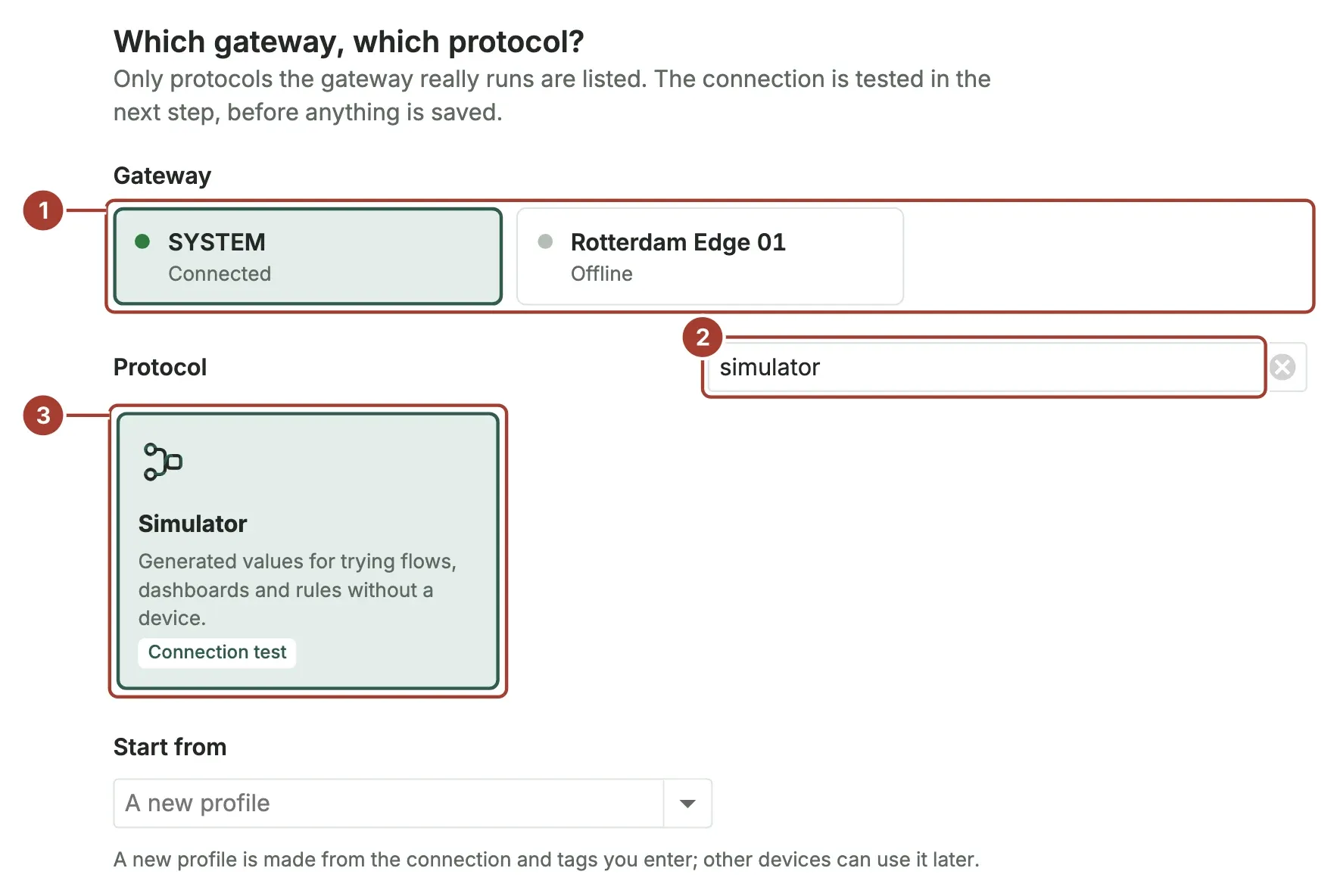
- Under Gateway, select SYSTEM (1). It shows Connected when it is online. Your hub may list other gateways too.
- In the protocol search box (2), type
simulator. - Select the Simulator card (3).
- Leave Start from at A new profile.
- Select Next: Connection.
Step 3: Test the connection
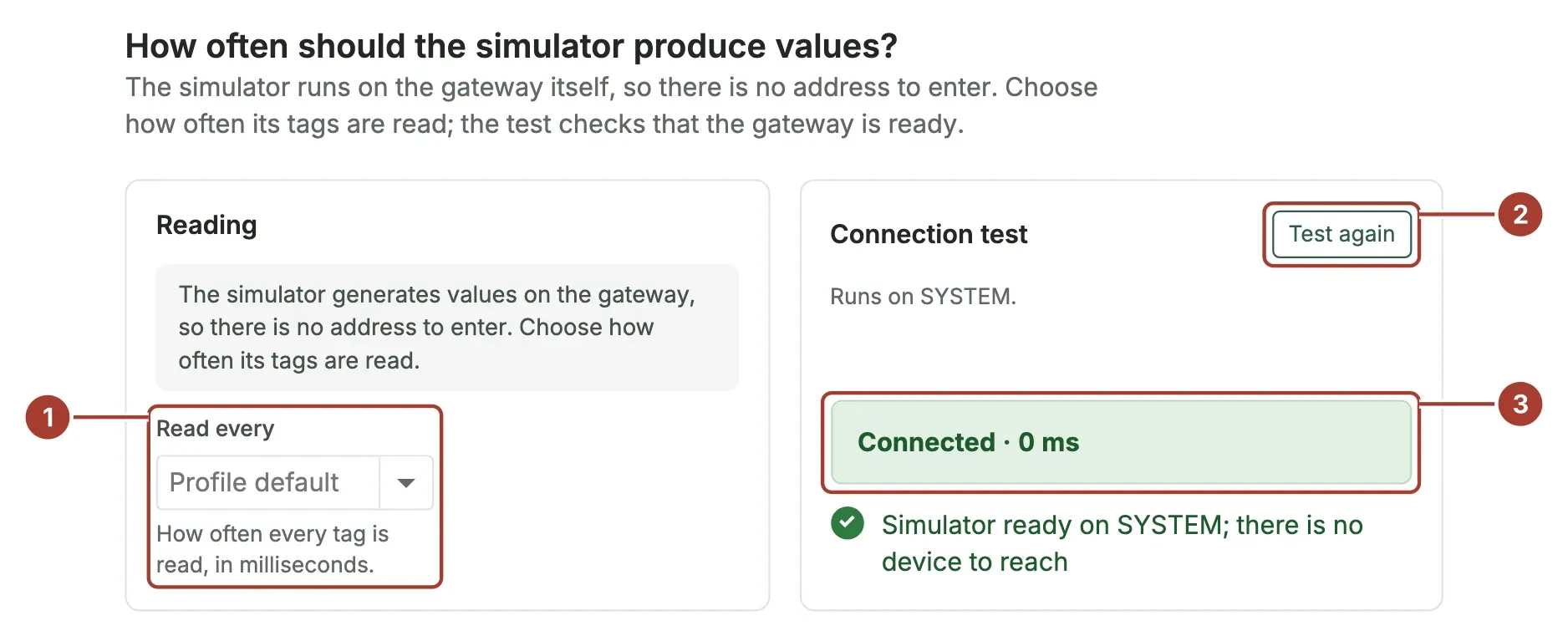
A simulator has no address, so this step only asks how often to read.
- Leave Read every (1) at Profile default.
- Select Test the connection (2). The test checks that the gateway is ready to make values.
- The result (3) shows Connected and the line "Simulator ready on SYSTEM".
Select Next: Tags.
Step 4: Add three tags
A tag is one value you read from a machine. For a simulated tag, the Address is the range the value stays in, written as [minimum,maximum], and the Pattern says how the value moves inside that range.
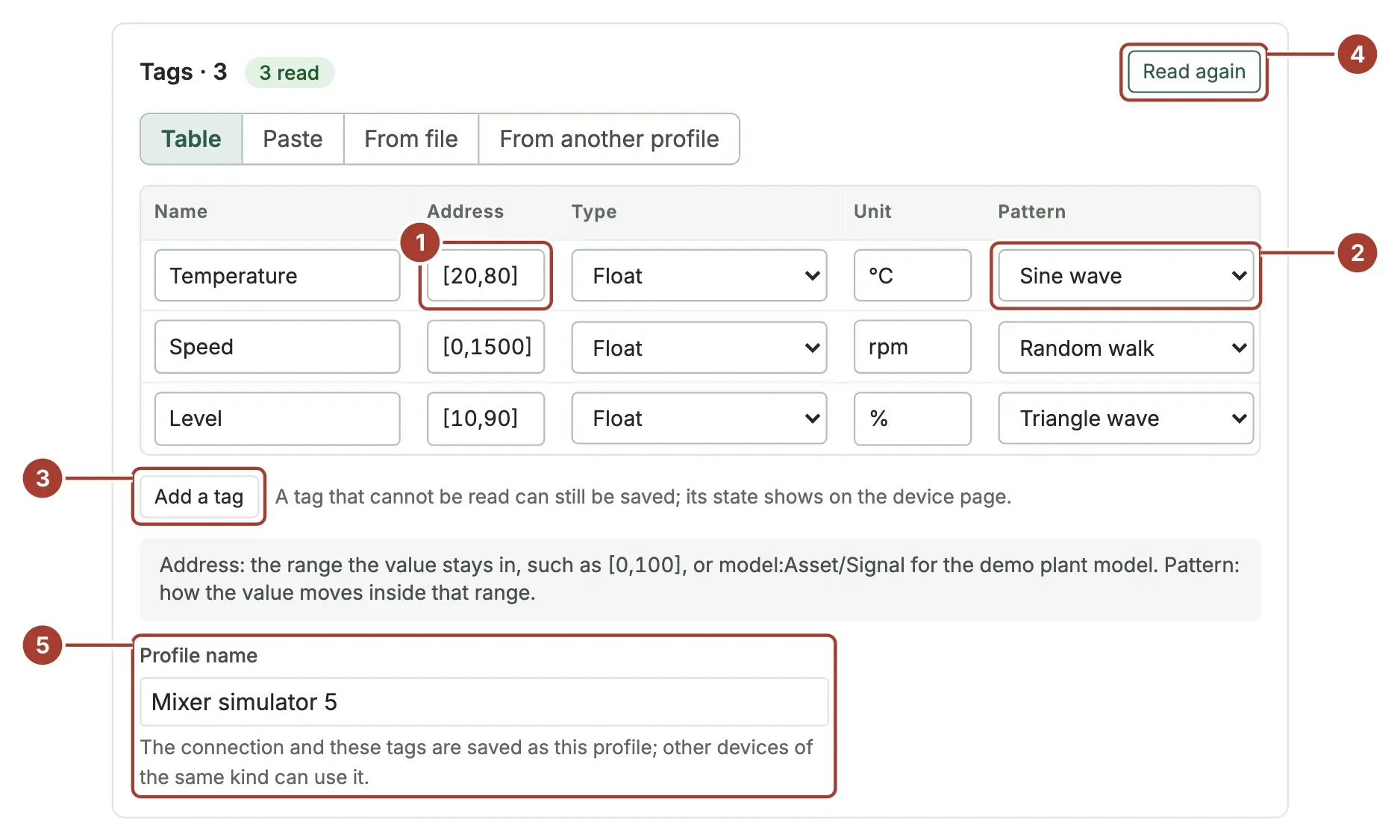
The Table tab shows one empty row. Fill it in:
Name Address Type Unit Pattern Temperature[20,80]Float °CSine wave The address (1) keeps the temperature between 20 and 80 °C; the pattern (2) makes it rise and fall smoothly.
Select Add a tag (3) and fill in the second row. Do it once more for the third:
Name Address Type Unit Pattern Speed[0,1500]Float rpmRandom walk Level[10,90]Float %Triangle wave Select Read all once (4). The gateway reads each tag one time and shows a value in the Test read column. The button now says Read again.
In Profile name (5), type
Mixer simulator. The connection and the tags are saved as a device profile under this name, so a second mixer can reuse them.
Select Next: Place and type.
Step 5: Name and place the mixer
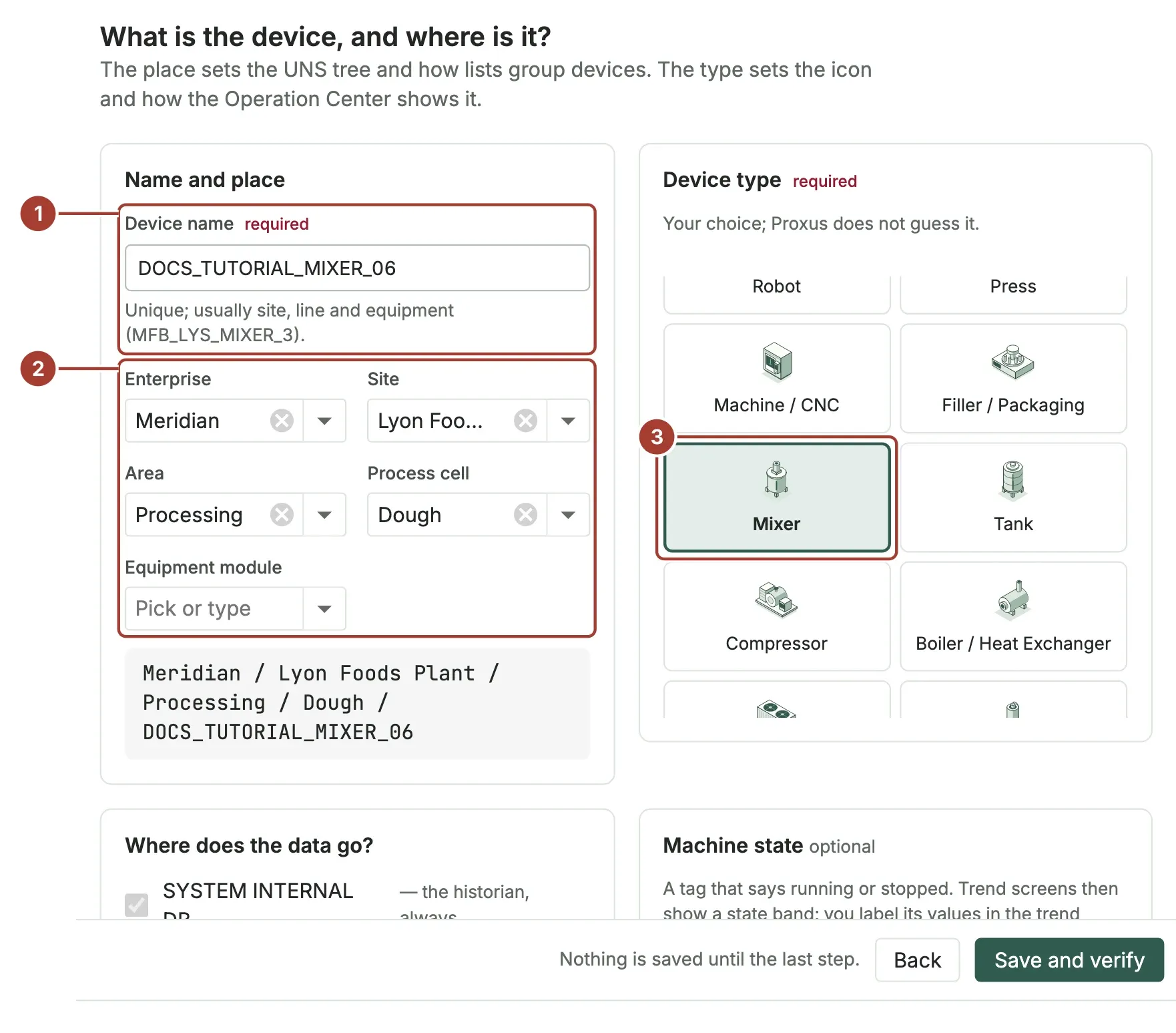
In Device name (1), type a unique name. This tutorial uses
DOCS_TUTORIAL_MIXER_01; you can name it anything, for example after your own site, line and machine.Fill in the place (2). Select each field and type a value, or pick one that already exists:
- Enterprise:
Meridian - Site:
Lyon Foods Plant - Area:
Processing - Process cell:
Dough
Leave Equipment module empty. The line under the fields shows the path the device will have in the Unified Namespace.
- Enterprise:
Under Device type, select Mixer (3).
Further down, Where does the data go? shows the historian ticked: the values of every new device are stored. Leave the other targets unticked. Then select Save and verify.
Step 6: Watch the first values
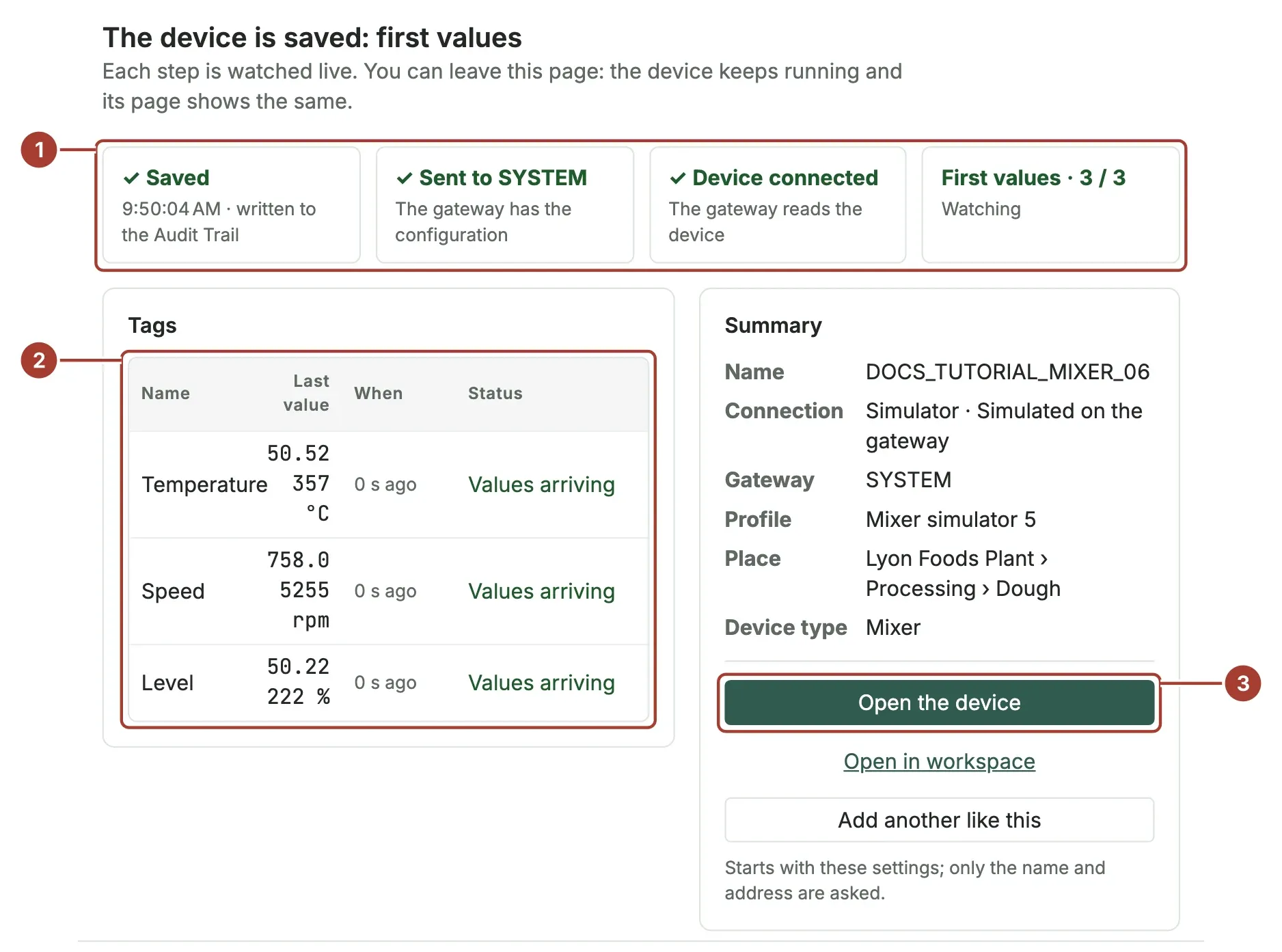
The wizard saves the device and follows it live:
- The stages (1) complete in order: Saved, Sent to SYSTEM, Device connected and First values with 3 / 3.
- Each tag (2) shows its last value, how long ago it arrived and Values arriving.
- Select Open the device (3).
The mixer now runs on its own. You can close the wizard tab; the values keep coming.
Step 7: Look at the device page
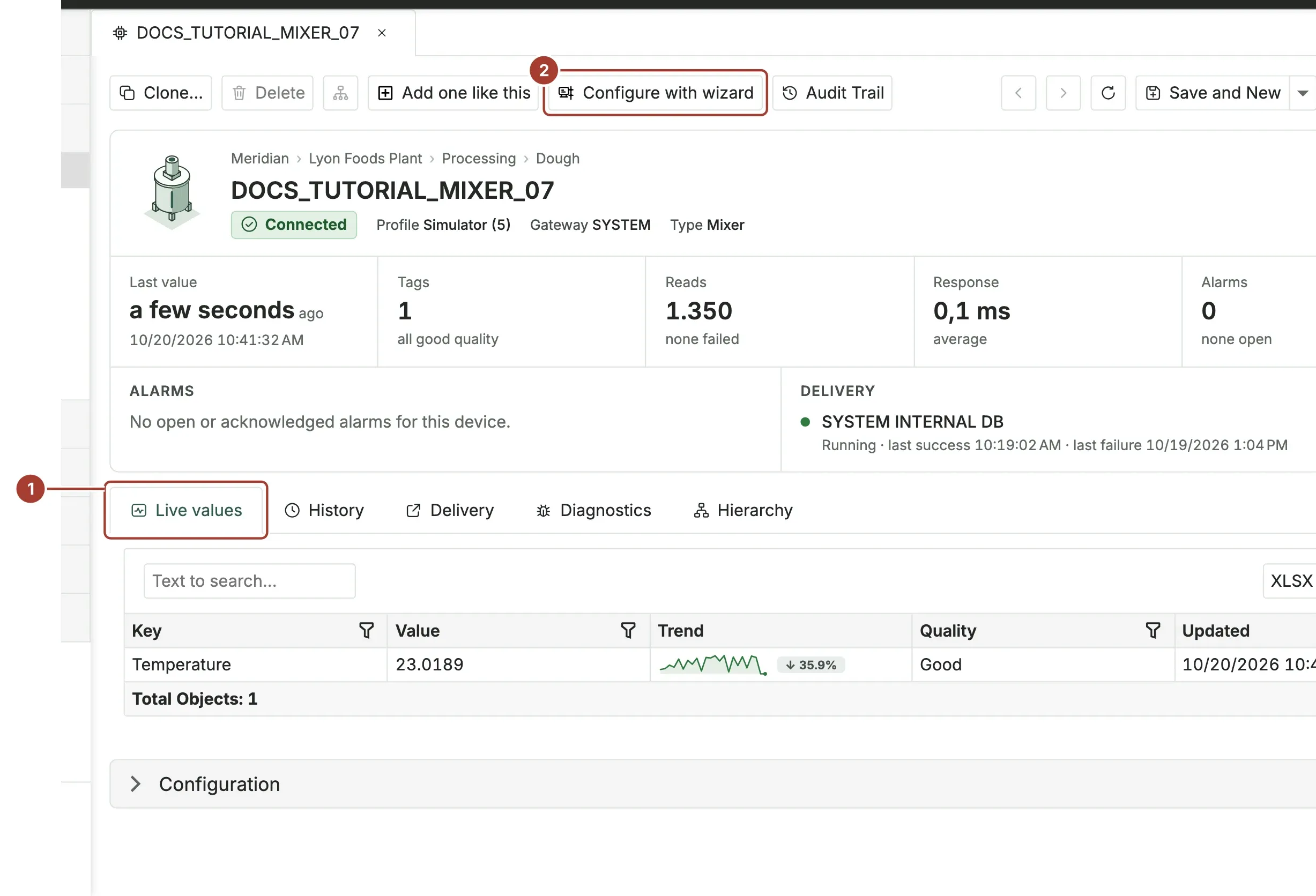
The device page is where you check one machine. At the top you see its place, its name, Connected, its profile, gateway and type, then a row of figures: when the last value arrived, how many tags it has, how many reads failed, the response time and the open alarms.
- The Live values tab (1) lists every tag with its value, a small trend, its Quality and when it was updated. All three tags show Good quality. Watch the values change.
- Configure with wizard (2) opens the same wizard with the device's settings, if you want to change something later.
The other tabs show the stored values (History), where the data is sent (Delivery), connection details (Diagnostics) and where the device sits in the plant (Hierarchy). The device page describes each part.
Step 8: Draw a trend
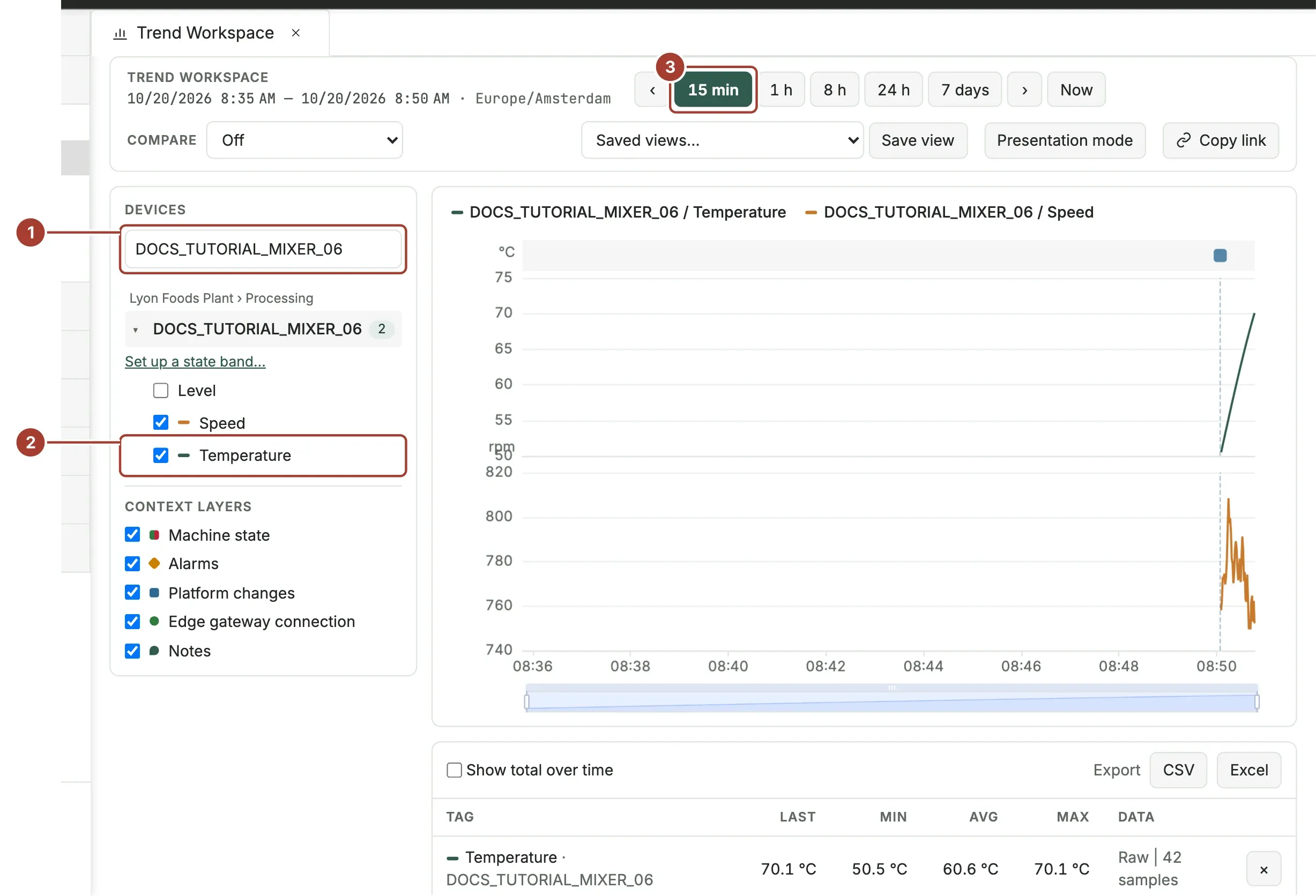
- In the menu, go to Monitor > Trend Workspace.
- In the search box under Devices (1), type the device name, then select the device in the list to show its tags.
- Tick Temperature (2) and Speed. Each tag is drawn in its own pane on one time axis.
- Select 15 min (3) to look at the last fifteen minutes.
Temperature draws a smooth wave between 20 and 80 °C; speed wanders up and down. The table under the chart gives the last, minimum, average and maximum value of each tag in the time range. The trend grows as new values arrive; select Now to move the range to the present. The small markers along the top of the chart are context, such as changes made in the hub; Context layers on the left turn each kind on and off.
What you have now
- A device,
DOCS_TUTORIAL_MIXER_01, read by the SYSTEM gateway. - A device profile,
Mixer simulator, that a second mixer can use: in the wizard, pick it under Start from, or select Add one like this on the device page. - Three tags, stored in the historian with their time, and published in the Unified Namespace under
Meridian / Lyon Foods Plant / Processing / Dough / DOCS_TUTORIAL_MIXER_01.
The simulated mixer keeps running until you turn it off. To stop it, open the device page, expand Configuration, clear Active and select Save.
What's next
- Add a device with a real machine: the same wizard, with an address and a connection test against the machine.
- Simulated devices lists every pattern and the plant model addresses.
- Unified Namespace explains the path your mixer got from its place.
- Rules raise an alarm when, for example, the temperature stays above 75 °C.
- Trend Workspace covers saved views, comparisons and context layers.
Was this page helpful?
Evaluating Proxus? See it on your own machines in a 30-minute technical session.