Reference · for Operators, Engineers
Apps
Fill in the forms your roles may use, such as downtime reasons, quality checks and shift handovers, for a device, with drafts saved as you type.
Apps lists the forms you can fill in: downtime reasons, quality checks, shift handovers and any form an engineer publishes for your roles. A record you submit is kept with the device it is about, who filled it in and when. It is in Monitor > Apps; forms are designed in Organize > Forms.
Who sees which form
A form names the roles that may fill it in, see its records and approve them. You see a form when one of your roles is named, and your role also needs the matching capability:
| You want to | Your role needs |
|---|---|
| Fill in and submit a form | Fill in forms, and to be named among the form's roles that fill it in |
| Approve or reject records | Approve forms, and to be named among the form's approvers |
| Add the sample forms | Publish forms |
A form filled in for a device follows your site: you only see the devices your roles may see. See Users and roles for the built-in roles.
Fill in a form
- Open Monitor > Apps and select a form.
- When the form is about a device, choose the device. The address bar now names the form and the device, so a bookmark or a link opens the same form for the same machine, for example on a tablet next to it.
- Fill in the fields. Fields marked with * are required. Some fields appear or become required from your answers: in Shift handover, Why the scrap appears when the scrap count is above zero.
- Select Submit. Fields that need attention say why next to the field (for example At most 500 pcs., or the designer's own message), and the record is not sent until they are fixed.
Your draft is saved a moment after each change. When you open the same form for the same device again, the draft comes back. Each person has one open draft per form and device.
A form that needs approval shows It now waits for approval after you submit it.
Sample forms
When there are no forms yet, a user who may publish forms sees Add sample forms. It adds and publishes three forms that name the built-in roles:
| Form | What it records |
|---|---|
| Downtime reason | Why a machine stopped, when, for how long, and whether it runs again |
| Quality check | A first-piece or in-process checklist with a pass or fail result; an engineer approves it |
| Shift handover | Output, scrap and its reason, safety, and open issues for the next shift |
Roles a hub does not have are left out of a sample's lists.
What a form can hold
- Text, numbers, dates and times. Numbers have large − and + buttons, the unit and the allowed range.
- Choices. A few options show as cards you tap; many options open a searchable list. Several answers show as chips.
- Choices with levels. A reason such as Unplanned › Breakdown › Electrical is chosen one level at a time with large buttons; the way back is shown above them and a long list can be searched. Change opens the list again where the choice was. See Choice lists.
- Checklists. Each line is answered OK or Not OK; a failed line can ask for a note.
- Photos, files and a signature. On a tablet, adding a photo opens the camera. A signature is drawn on the screen.
- Live machine values. Values of the device the form is opened for update while the form is open, with their quality and when they last changed.
- Writing to the machine. A setpoint stays within the limits the form sets, and a write button asks to confirm before it writes. The machine's answer is shown next to it.
My records and approvals
The tabs above the forms show records instead of forms:
- My records lists every record you filled in, drafts included, newest first.
- To approve lists the submitted records that wait for your decision, oldest first. The tab is there when you approve at least one form, and its badge counts what waits.
Select a record to open it beside the list.
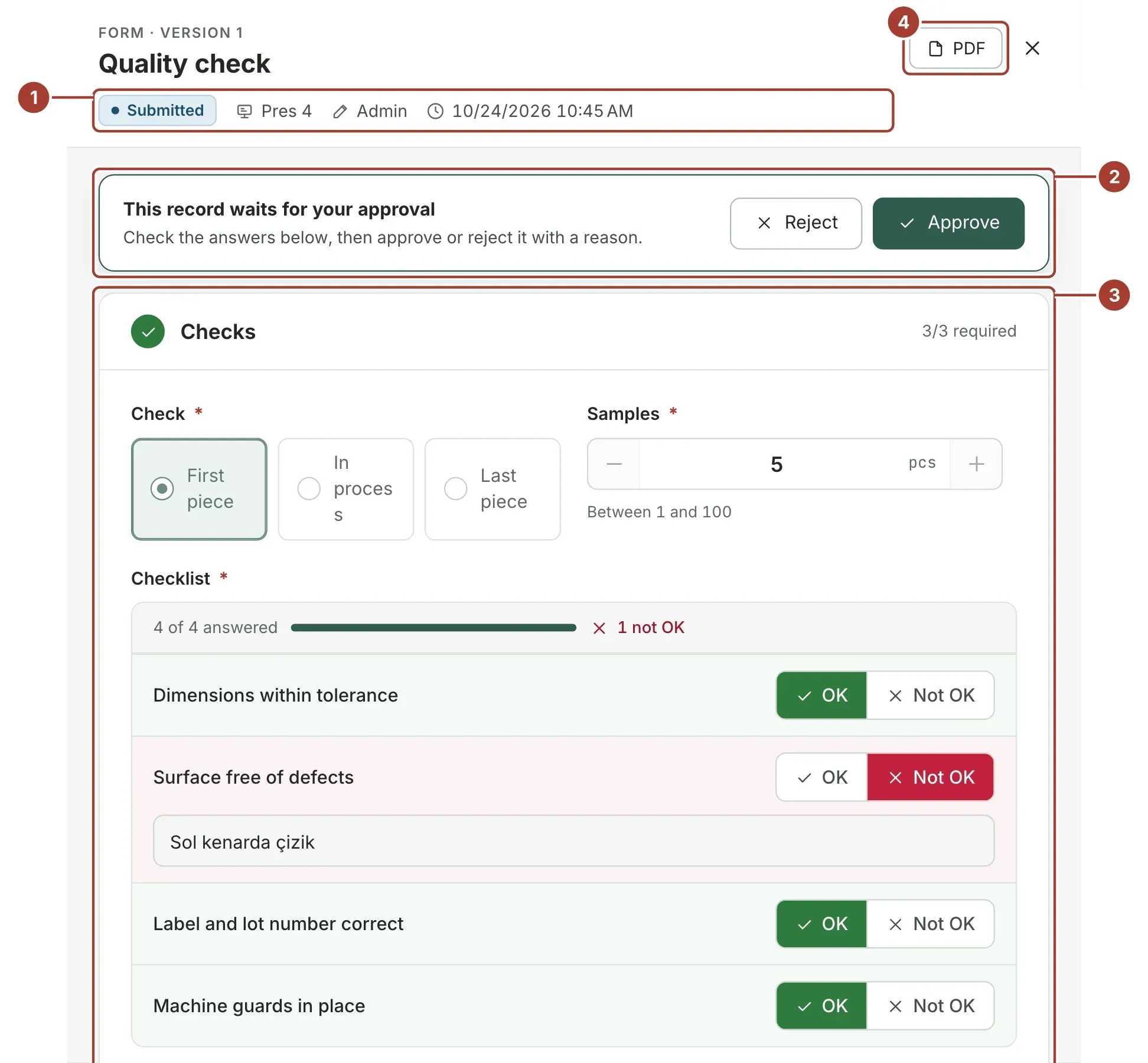
- Where the record stands, the device it is about, who filled it in and when.
- Approve, or Reject with a reason. The person who filled it in reads the reason on the record.
- The answers, drawn as the form people fill in, with photos, files and the signature from the record.
- PDF downloads the record for printing, with its photos and signature.
A draft has Continue filling in, which opens it in the form for the same device. The record's history at the bottom shows when it was started, submitted, decided and exported, and by whom.
Kiosk mode
A tablet next to a machine can show one form all day, without menus: the kiosk.
- Open the form on the Apps page for the machine and select Kiosk link in the form's header. The link is copied; where the browser does not allow copying, it is shown to copy by hand.
- Open the link on the tablet. It has the form of
https://<hub>/forms/kiosk/<form key>/<device number>; without the device number, the kiosk asks for the device.
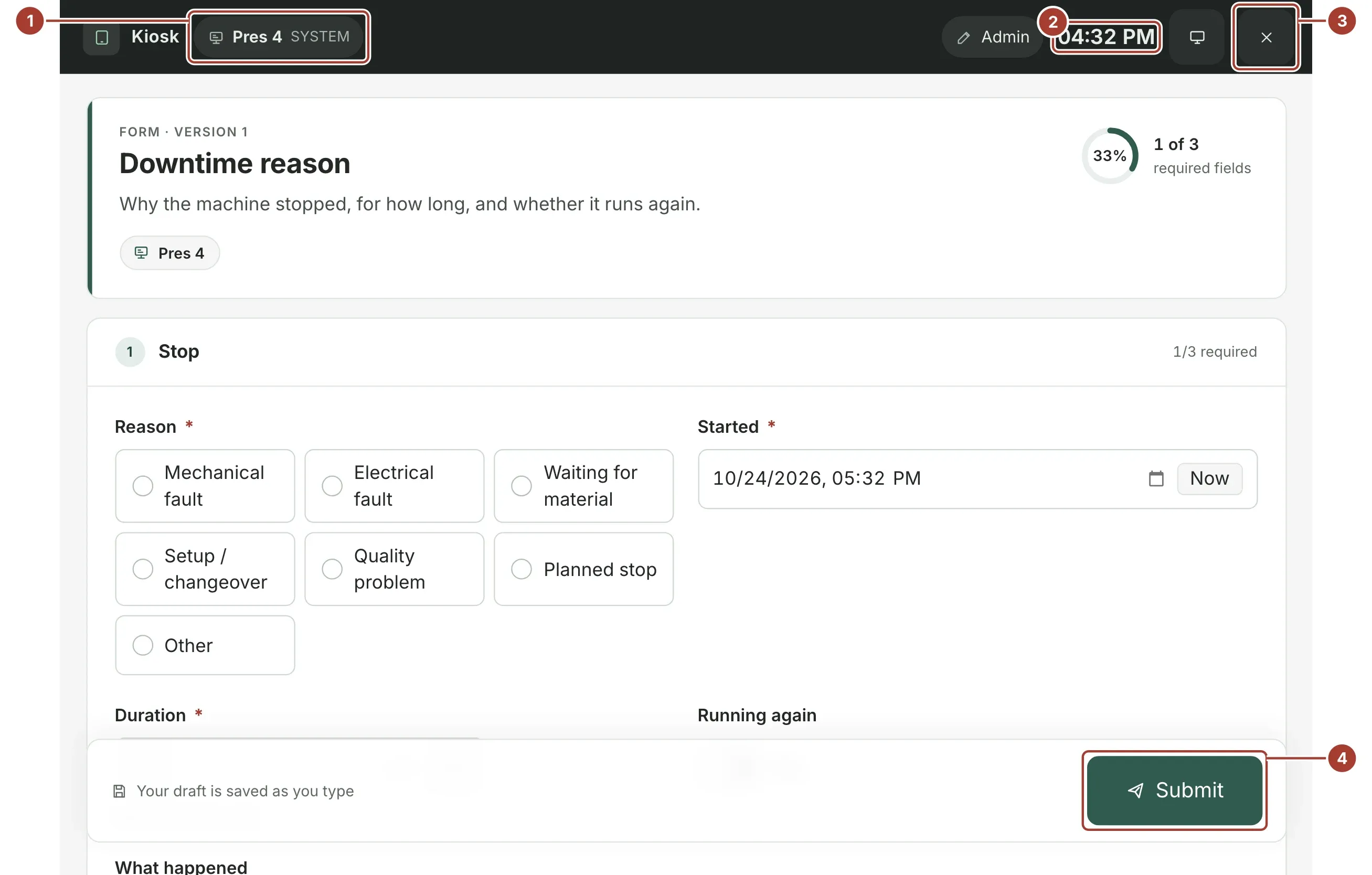
- The device the kiosk is for. A kiosk opened with a device number stays on that device.
- The clock. The screen does not go to sleep while the kiosk is open, where the tablet's browser allows it.
- Leave kiosk asks to confirm, then returns to the Apps page. Full screen next to it hides the browser's bars.
- Controls are large enough for gloves. After Submit, the next empty record starts by itself after a few seconds.
When the connection to the hub drops, an orange strip says so above the form: changes made then are not saved. When the hub answers again, the page reloads by itself, with the form, the device and the saved draft.
Setting up a tablet
- Sign in once on the tablet with a user whose role may fill in the form, for example a shared Operator account for the line. The kiosk stays signed in like any browser tab.
- Lock the tablet to the browser: Chrome's kiosk mode (
--kioskwith the kiosk link) on a PC or Chromebook, Screen pinning or a managed kiosk on Android, Guided Access on an iPad. - Turn off sleep and battery saving for Wi-Fi in the tablet's own settings, and keep a way for an administrator to leave the kiosk.
Limits in this version
- A rejected record is not edited again: fill in a new record.
Was this page helpful?
Evaluating Proxus? See it on your own machines in a 30-minute technical session.