How-to guide · for Administrators
White labeling
Show your own application title and logo in the hub instead of the Proxus brand. Needs a license that includes white labeling.
At the end of this guide, the hub shows your application title in the browser tab and your logo in the header.
Before you start
- A license that includes white labeling. Platform > License Info shows White Labeling Yes in the License Entitlement table. Without it, the White Labeling menu item is not shown. See License.
- Sign in with a user that has the Administrators role.
- Your logo as a PNG file. Other formats are refused with "Only PNG files are allowed for the logo."
Set your title and logo
Go to Platform > White Labeling. While nothing is set, the list says Using the Proxus brand.
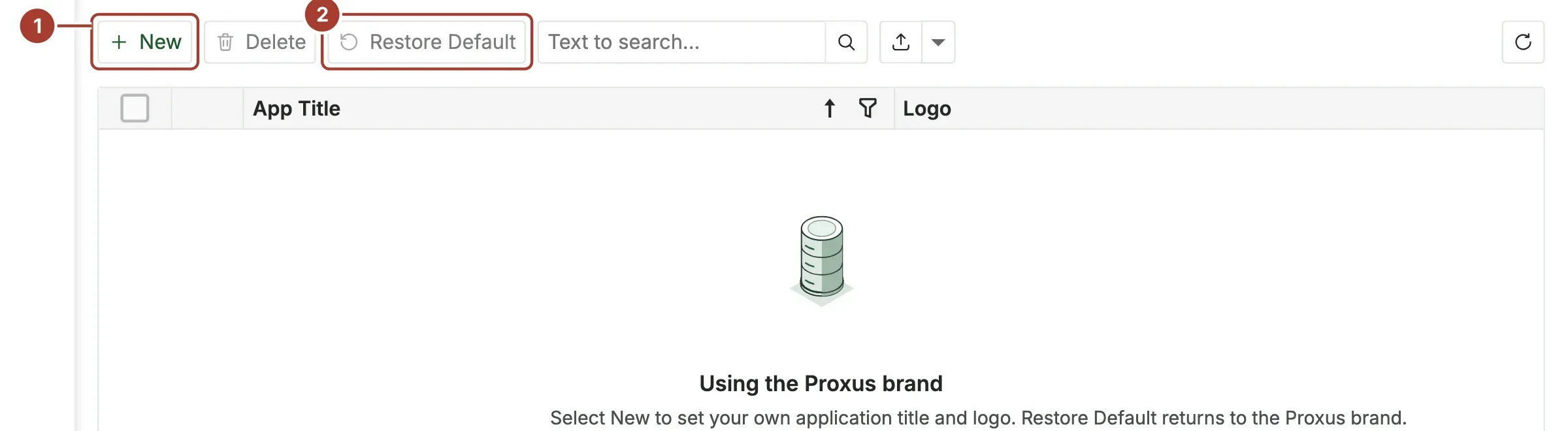
- New creates the setting. Create only one: the hub uses the first one it finds.
- Restore Default returns to the Proxus brand.
On the new setting:
- App Title: the name shown in the browser tab, for example
Meridian Plant Data. - Logo: upload your PNG. It replaces the Proxus logo in the header.
- Custom Css: optional style rules for the hub's pages, for experienced users. Rules that would hide the About information are removed.
- Select Save, then reload the page in the browser.
With white labeling, the Proxus logo is also left out of reports.
Return to the Proxus brand
Open the setting and select Restore Default. The title and the style rules are cleared and the Proxus logo comes back.
What's next
Was this page helpful?
Evaluating Proxus? See it on your own machines in a 30-minute technical session.