How-to guide · for Administrators
Set the region and time
Choose the plant's time zone, the format of numbers and dates, and the zone of each site in another country. Users can read their own clock.
At the end of this guide, every screen shows times on the plant's clock, and sites in other countries use their own. Numbers and dates use the format you chose.
Proxus stores every time in UTC. The settings below only choose how times are shown, so you can change them at any time without changing any data.
Before you start
- An administrator account, or a role with full access to Platform settings. See Users and roles.
Set the plant's time zone and format
- Open Administration > Region and Time.
- In Plant Time Zone, choose the plant's zone, for example
Europe/Berlin. The installer fills it with the zone you chose during installation. - In Default Format, choose the format of numbers and dates for e-mails, reports and other texts that are not written for one person, for example
de-DE. Leave it empty to use each person's language. Alarm notifications (e-mail, SMS, Slack, Teams and the other channels) write their times on the plant's clock in this format. - Check Example: it shows the time now and a number in the format you chose.
- Select Save.
Open screens show the new times at once.
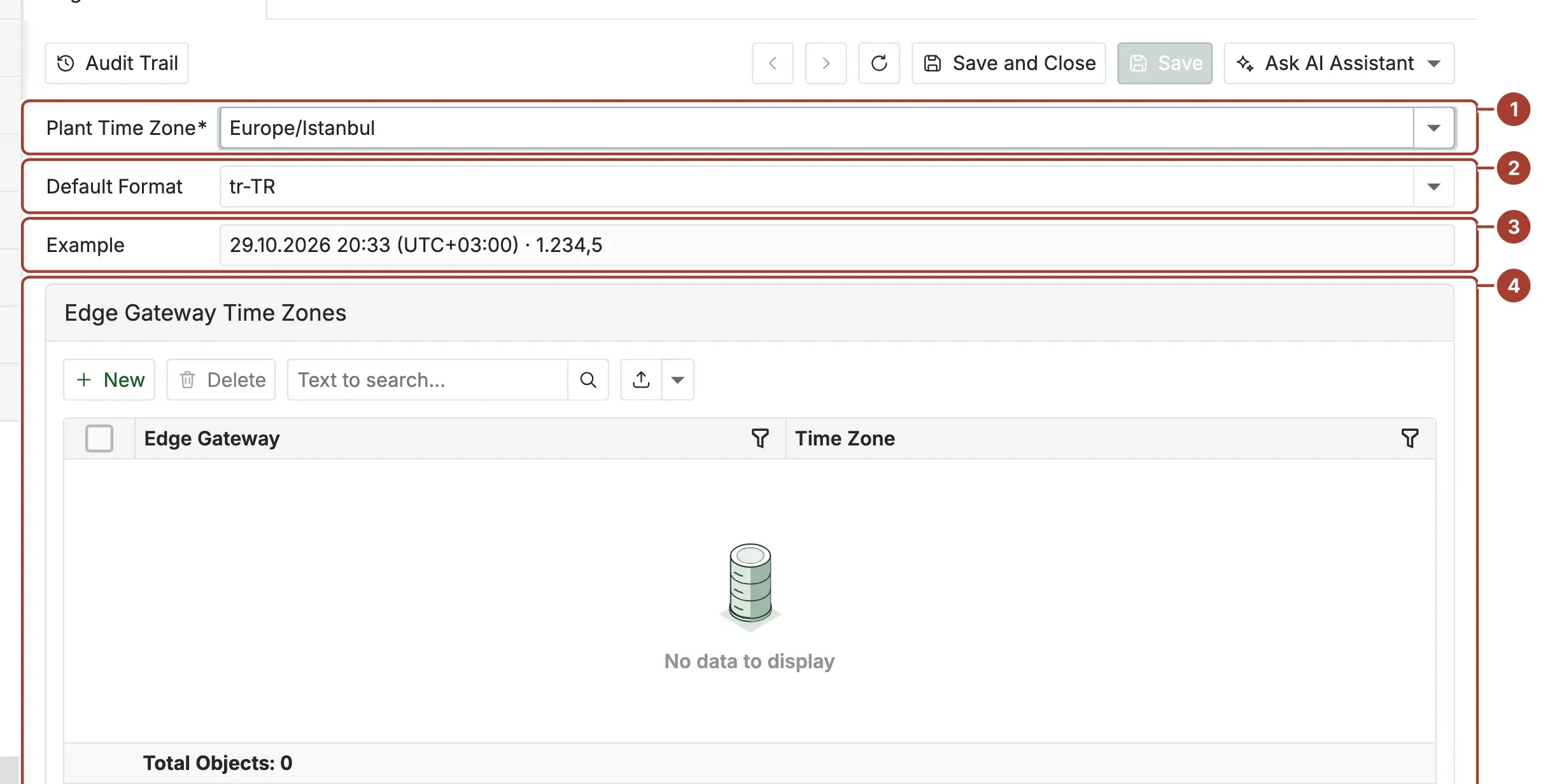
- Plant Time Zone: the clock every screen, report and notification uses unless a user or an Edge Gateway has its own.
- Default Format: numbers and dates in texts written for no one person.
- Example: the time now and a number, as the two settings above write them.
- Edge Gateway Time Zones: Edge Gateways that run on another clock (next section).
Give an Edge Gateway its own time zone
When an Edge Gateway is in another country, the alarm notifications of its rules (e-mail, SMS, Slack, Teams and the other channels) are written on its own clock, so the people on that site read their local time.
- Under Edge Gateway Time Zones, select New.
- In Edge Gateway, choose the gateway from the list.
- In Time Zone, choose its zone, for example
Europe/Paris. - Select Save.
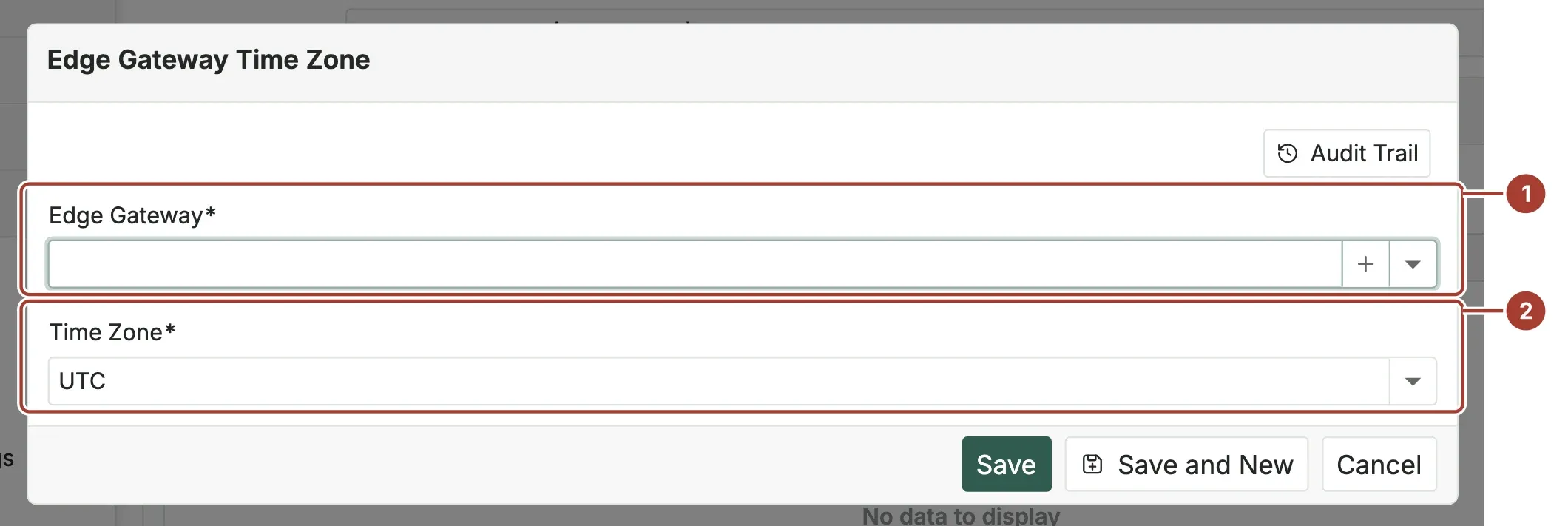
- Edge Gateway: chosen from the list of gateways; you do not type it.
- Time Zone: the zone of the place where that gateway runs.
Edge Gateways you do not add use the plant's time zone. Screens keep showing each user's own clock (see below), and a pipeline's schedule uses the zone chosen in its schedule step.
Let users read their own clock
Each user chooses on My Details, under Region and Time:
| Field | Choices |
|---|---|
| Time Zone | Plant time (the default), My browser's time, or Choose from the list, which shows Chosen Time Zone. |
| Date and Number Format | Empty for the format of their language, or a format such as en-GB or de-DE. The page reloads in the new format, and lists, charts, dashboards and date pickers use it; texts stay in the user's language. |
A user abroad who keeps Plant time reads the same clock as the people on site.
Forms follow the same choice: date and time fields are filled on the user's clock, and record lists, PDF, CSV and Excel exports and the analysis days use it too. Work order start and end times are kept on the plant's clock.
Times in your own queries, dashboards and reports
Telemetry, log and metric times in ClickHouse show the plant's clock. A query such as SELECT Time, Value FROM DeviceRawData returns 2026-10-29 16:11:23 for a reading taken at 16:11 on site, and dashboards and reports group days and hours by that clock. The same holds for the tables under proxus_reporting (alarms, Edge Gateways, scheduled deliveries), even for columns whose names end in Utc. When you change Plant Time Zone, these times follow on the next save; the stored data does not change.
The telemetry API and the MCP tools return times as ISO 8601 UTC with a Z (2026-10-29T13:11:23Z), whatever the plant's zone, so integrations read the same value everywhere.
Was this page helpful?
Evaluating Proxus? See it on your own machines in a 30-minute technical session.