How-to guide · for Engineers
Change a device
Change a device's connection, gateway, name or place with the setup wizard, test it before you save, or add another device like it.
At the end of this guide, an existing device has its new settings (another address, another gateway, a new name or place) and you have seen it connect again. The setup wizard that added the device also changes it, so every change can be tested before it is saved.
Before you start
You need:
- The device, already in Connect > Devices.
- A user role that may change devices.
Open the device in the wizard
Open the device (select its row in Connect > Devices) and select Configure with wizard. In the device list, you can also select one device and then Configure with wizard.
The wizard opens in a new tab named Configure and the device name, with the device's current settings.
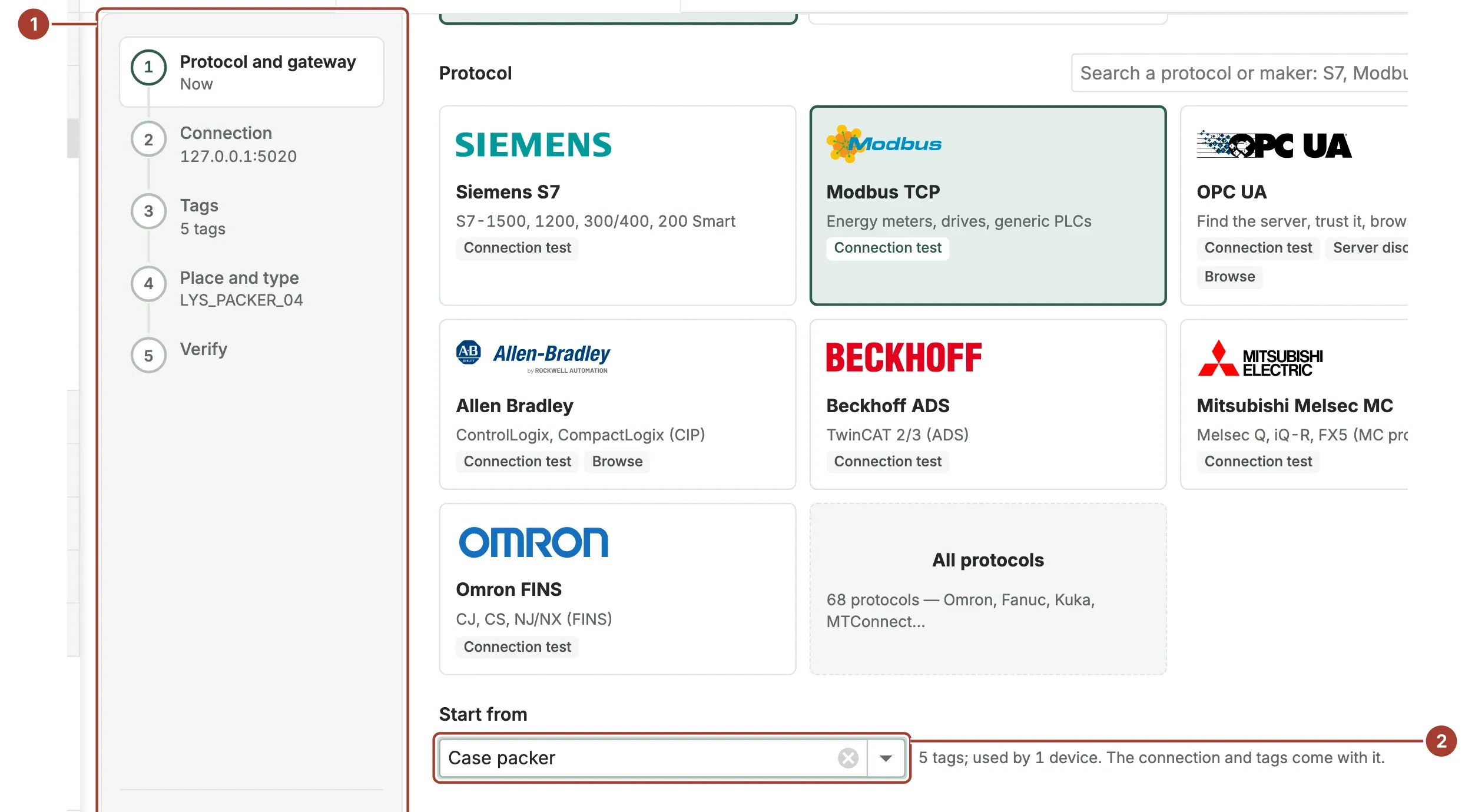
- Every step shows what is set now: the address, the number of tags, the device name. Select any step to go to it directly. Verify opens only after you save.
- Start from shows the device's profile: its connection and tags come with it.
Nothing is saved until you select Save and verify in Place and type. Cancel leaves the device as it was.
Change the connection
Select Connection.
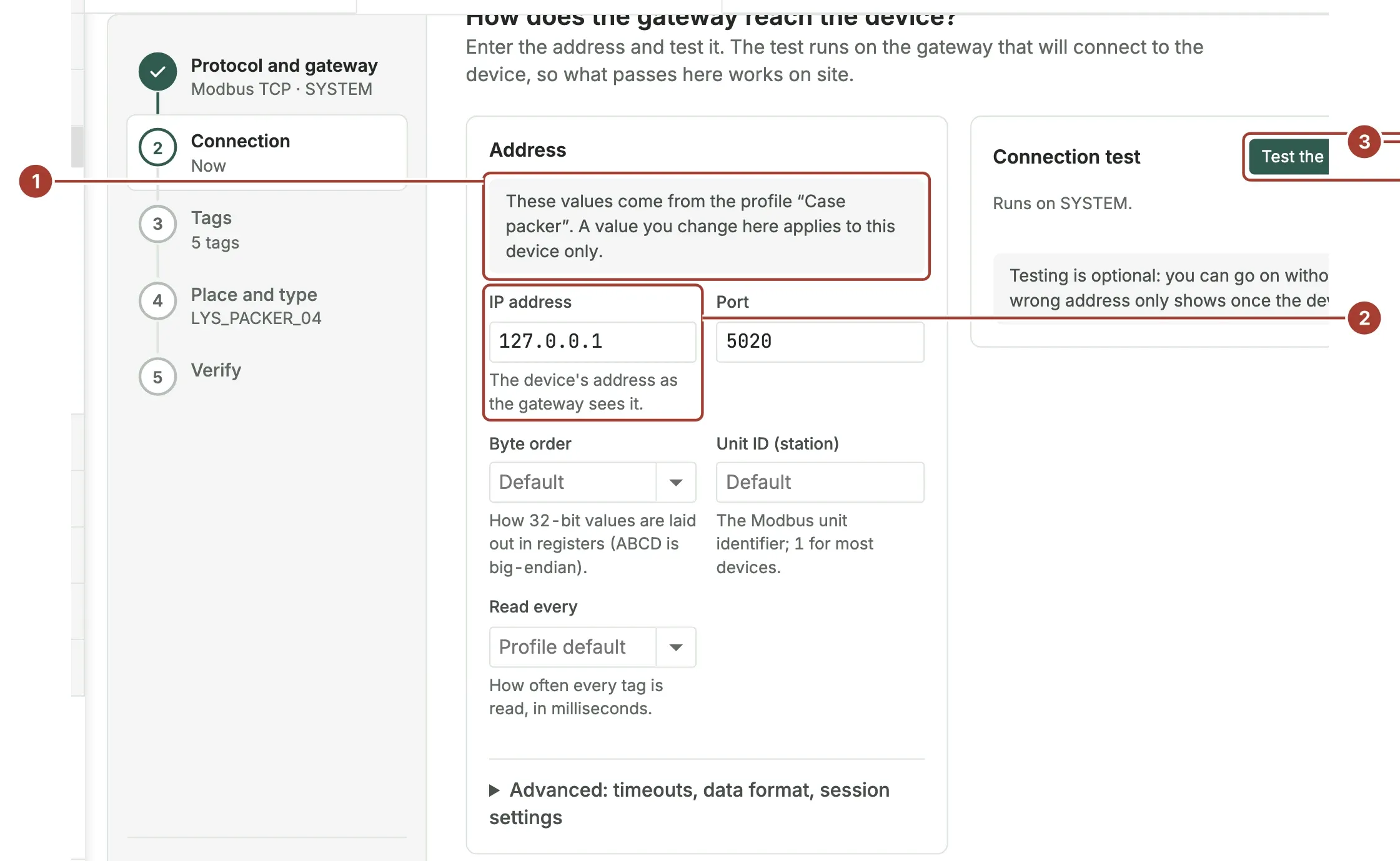
- The note says which profile the values come from. A value you change here applies to this device only: the profile and the other devices that use it do not change.
- Change the IP address, the Port or any other setting.
- Select Test the connection. The test runs on the device's gateway, as for a new device.
To move the device to another gateway, select Protocol and gateway and choose the gateway, then test the connection again: the new gateway must reach the device.
Change the tags
The tags of a device belong to its profile. In the Tags step, the table is read-only and shows the profile's tags; Read all once still reads each of them from the device.
To change the tags:
- For every device of this kind, change the profile in Device Profiles.
- For this device only, clear Start from in Protocol and gateway so it shows A new profile. The device then gets a new profile of its own, made from its connection and the tags you enter, and the other devices keep the old one.
Change the name, the place or the type
Select Place and type. Change the Device name, the Place or the Device type, and the outbound targets under Where does the data go?. A new name must be unique and follow your naming rule, if your administrator set one.
Save and verify
Select Save and verify. The device is updated in place (no new device is created), and the change is written to the audit trail. The Verify step then follows the device as it connects again and shows each tag's first value.
Add another device like this one
For a second machine of the same kind, open the first device and select Add one like this. At the end of the setup, Add another like this in Verify does the same.
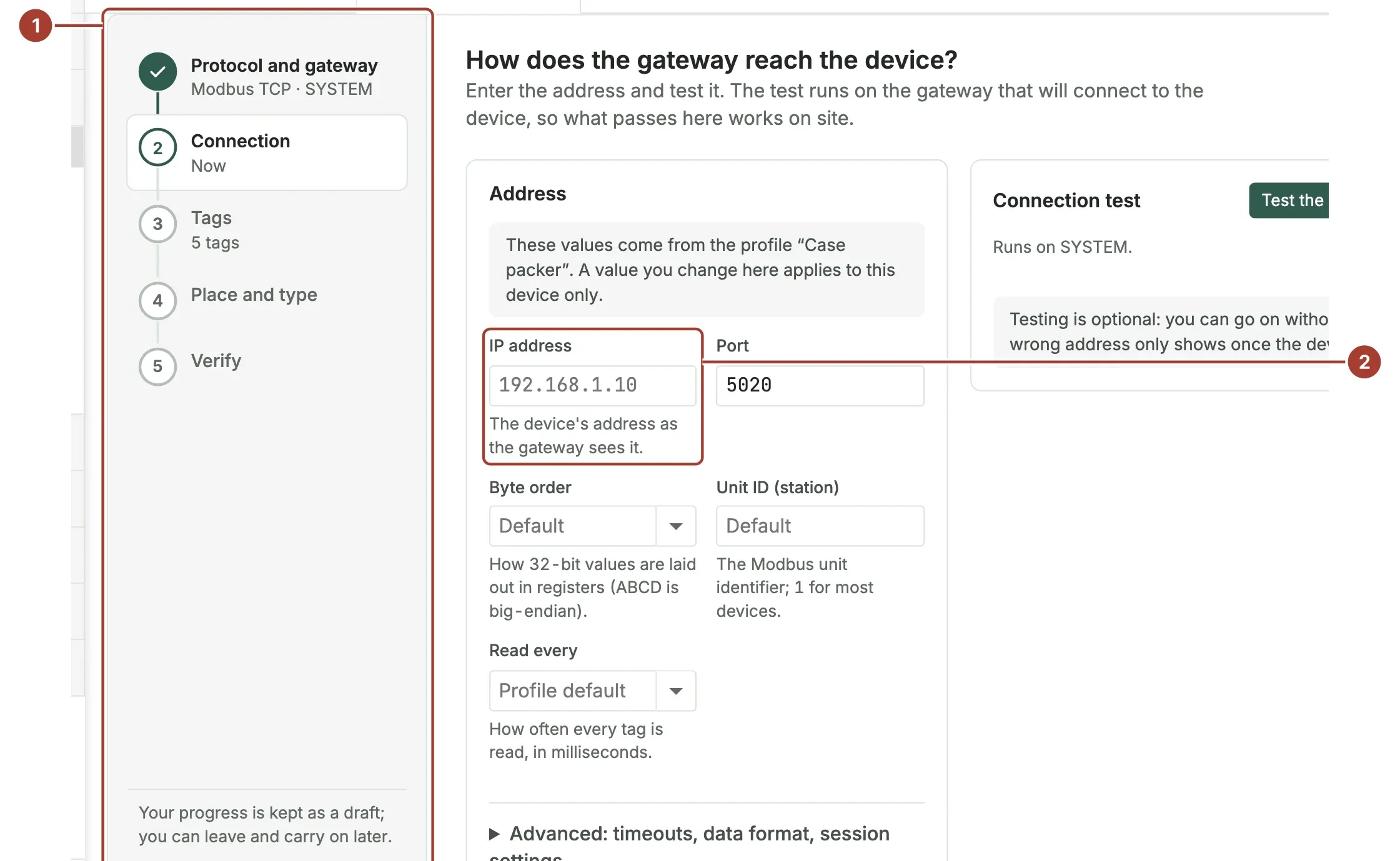
- The wizard copies the protocol, the profile, the gateway, the place, the device type and the outbound targets of the first device.
- It opens on Connection with an empty IP address. Enter the new machine's address and test it.
Then enter the new device's name in Place and type and select Save and verify. The new device uses the same profile as the first one.
What's next
- The device page
- Device profiles: change the tags of every device of a kind.
- Import devices: change many devices at once from a spreadsheet.
Was this page helpful?
Evaluating Proxus? See it on your own machines in a 30-minute technical session.