How-to guide · for Engineers
Simulated devices
Add a device that produces values on the gateway itself, to try trends, rules, pipelines and dashboards without a real machine.
At the end of this guide, a simulated device sends values like a real machine: a temperature that swings, a speed that drifts, a running signal that turns on and off. Use it to build and test trends, rules, pipelines and dashboards before the real machine is connected, or for a demo.
The Simulator protocol runs on the gateway itself. There is no address to reach and nothing to install.
Before you start
You need a gateway that is online. The hub's own gateway, SYSTEM, works.
Add a simulated device
Follow Add a device, with these differences.
Step 1: Protocol and gateway
Type simulator in the protocol search box and select the Simulator card.
Step 2: Connection
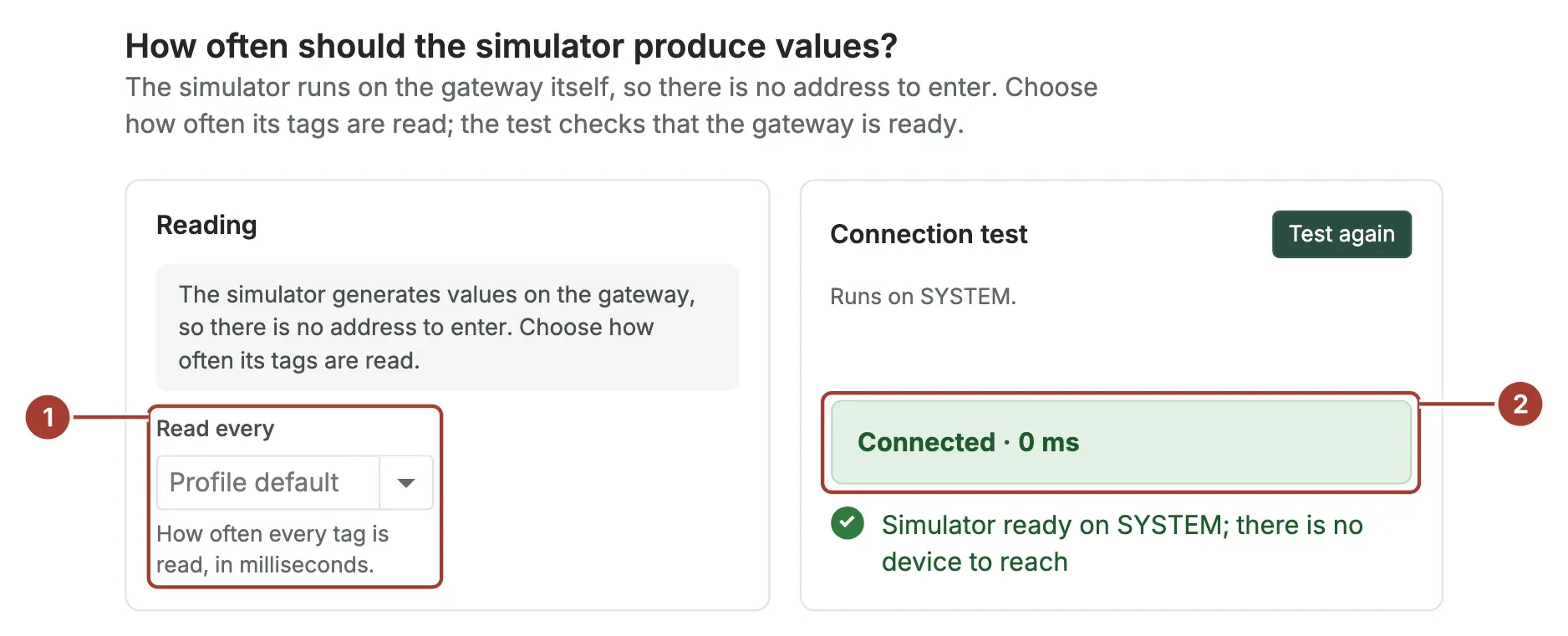
- Read every: how often the gateway produces a new value for each tag. Leave Profile default or choose an interval.
- Test the connection is optional. It only confirms that the gateway is ready to produce values.
Step 3: Tags
For the simulator, a tag's Address is the range the value stays in, and the Pattern column says how the value moves inside that range.
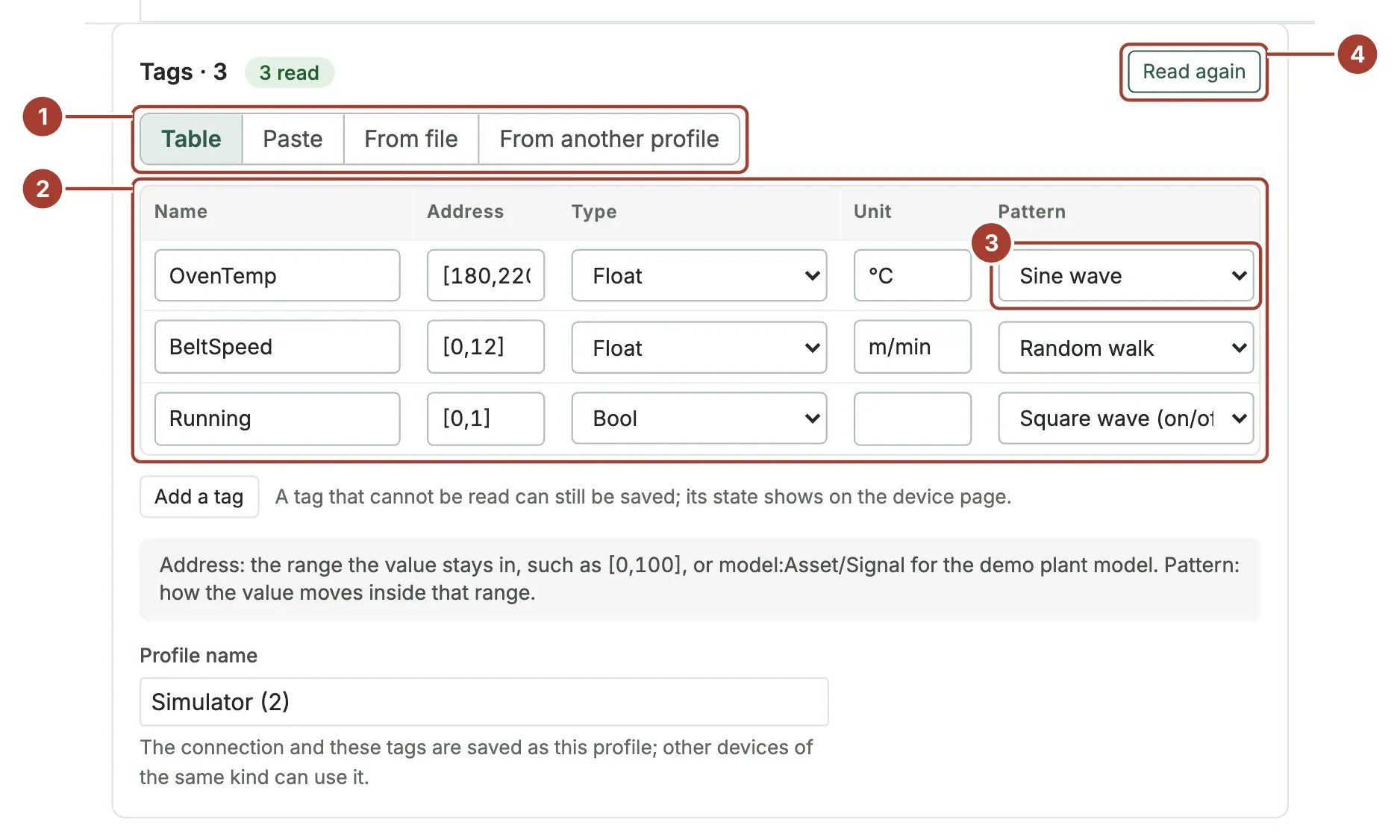
- The tabs to add tags. Paste also takes a fifth column with the pattern name.
- The tag table: Name, Address, Type, Unit, Pattern and the Test read value.
- Pattern of each tag. See Patterns.
- Read all once produces one value for each tag, so you can check the ranges.
The quickest way to add tags is the Address helper under the table:
![The address helper with name BatchCount, minimum 0, maximum 5000, unit pcs, type Int and the cycle pattern, building the address [0,5000]](/_astro/connect-sim-helper.BH_Kx5Rv_Z2bpcHO.webp)
- Minimum and Maximum: the range of the value.
- Pattern: how the value moves.
- The address the helper builds, for example
[0,5000]. - Add to the list adds the tag to the table.
Fill in Name, Unit and Type as well. Then continue with Place and type and Save and verify as for any device.
Addresses
| Address | Meaning | Example |
|---|---|---|
[min,max] | A value between min and max. Use a full stop for decimals. | [180,220], [-5.5,40] |
model:Asset/Signal | A signal of the demo plant model. The value follows the plant's simulated production, with stops, faults and changeovers. | model:LYS.P1.CSP/Speed |
model:{device}/Signal | The same, for the asset whose device name is the device's own. Used by the demo profiles, so one profile serves every machine of a kind. | model:{device}/GoodCount |
A text tag (type String) may have an empty address. It then gets a random text of ten letters and digits. A Bool tag is true when its value is above 0, so [0,1] with Square wave (on/off) gives a running signal. A DateTime tag gets a random date in the last year.
Patterns
| Pattern | How the value moves |
|---|---|
| Random | A new random value in the range at each read. |
| Random walk | Small steps up or down from the middle of the range. |
| Sine wave | A smooth wave between minimum and maximum. |
| Triangle wave | Rises and falls in straight lines. |
| Sawtooth | Rises in a straight line, then drops back. |
| Square wave (on/off) | Stays at the maximum, then at the minimum, for equal times. |
| Steps | Moves in ten steps through the range. |
| Around the middle (Gaussian) | Random, mostly near the middle of the range. |
| Smoothed noise | Random, but without sudden jumps. |
| Cycle (ramp, hold, fall) | Ramps up, holds, then falls, like a machine cycle. |
| Composite (wave and noise) | A wave with noise on top. |
| Plant model | Follows the demo plant model. Required for a model: address. |
Without a pattern, a [min,max] tag uses Random and a model: tag uses Plant model.
What's next
- The device page: watch the simulated values and open their trends.
- Rules: try an alarm on a simulated value.
- Your first machine: the guided tutorial that uses the simulator.
Was this page helpful?
Evaluating Proxus? See it on your own machines in a 30-minute technical session.