How-to guide · for Engineers, Administrators
Create and export a template
Collect configured objects such as rules, devices and dashboards into an application template and download it as a file for another hub.
At the end of this guide you have an application template that holds the objects you chose, and a .json file of it that you can import into another hub.
Before you start
- The objects you want to package exist and work in this hub. The template stores a copy of each object's settings at the moment you add it.
- For devices: the edge gateways and outbound targets they use are not part of the template. They must exist in the hub where you install it.
- Read Application Templates for what install and uninstall do.
Create the template
- Open Organize > Application Templates and select New.
- Enter a Name, and if you like a Description, the Developer and Usage Instructions for whoever installs it.
- Select Save. The template gets its Id.
Add objects
- Under Objects, select New. The Template Object dialog opens.
- In Type, choose the type of object. See Object types for what each name means.
- A list of the objects of that type opens. Select the object to add. Objects already in the template are not listed.
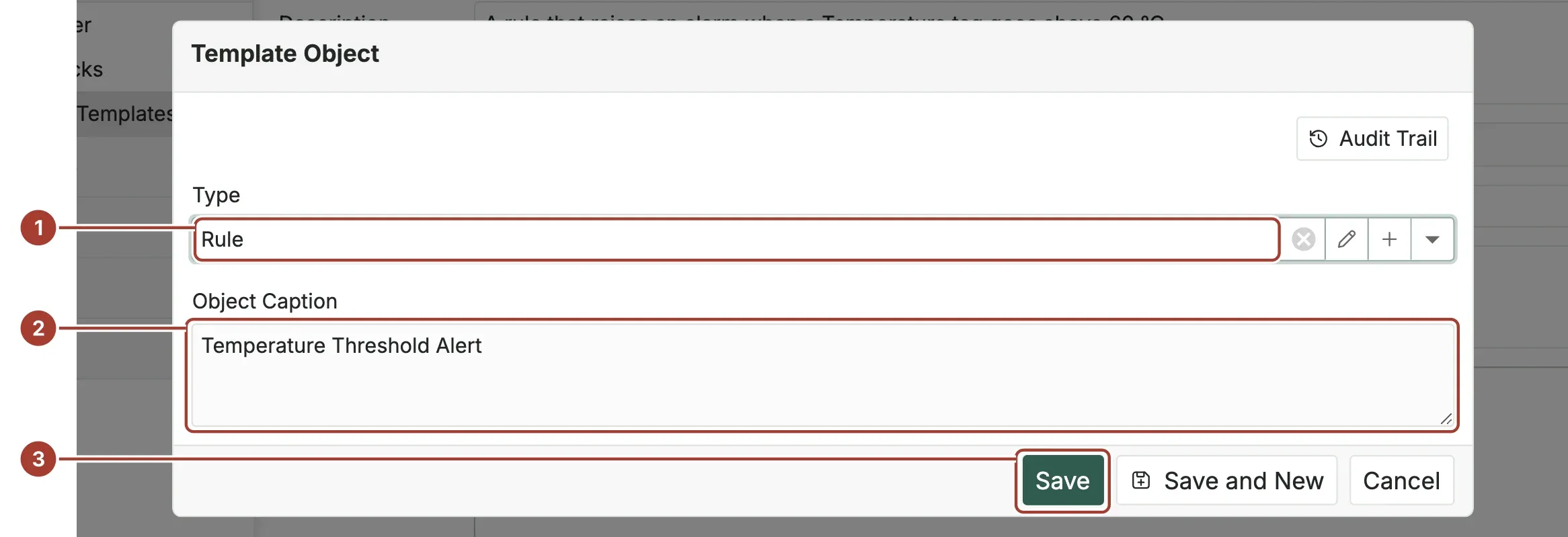
Type: here Rule.
Object Caption: the chosen object's name, filled in for you.
Save adds it. Save and New adds it and opens the dialog again for the next object.
Repeat for every object. When you add a device, its device profile is added with it.
Select Save on the template.
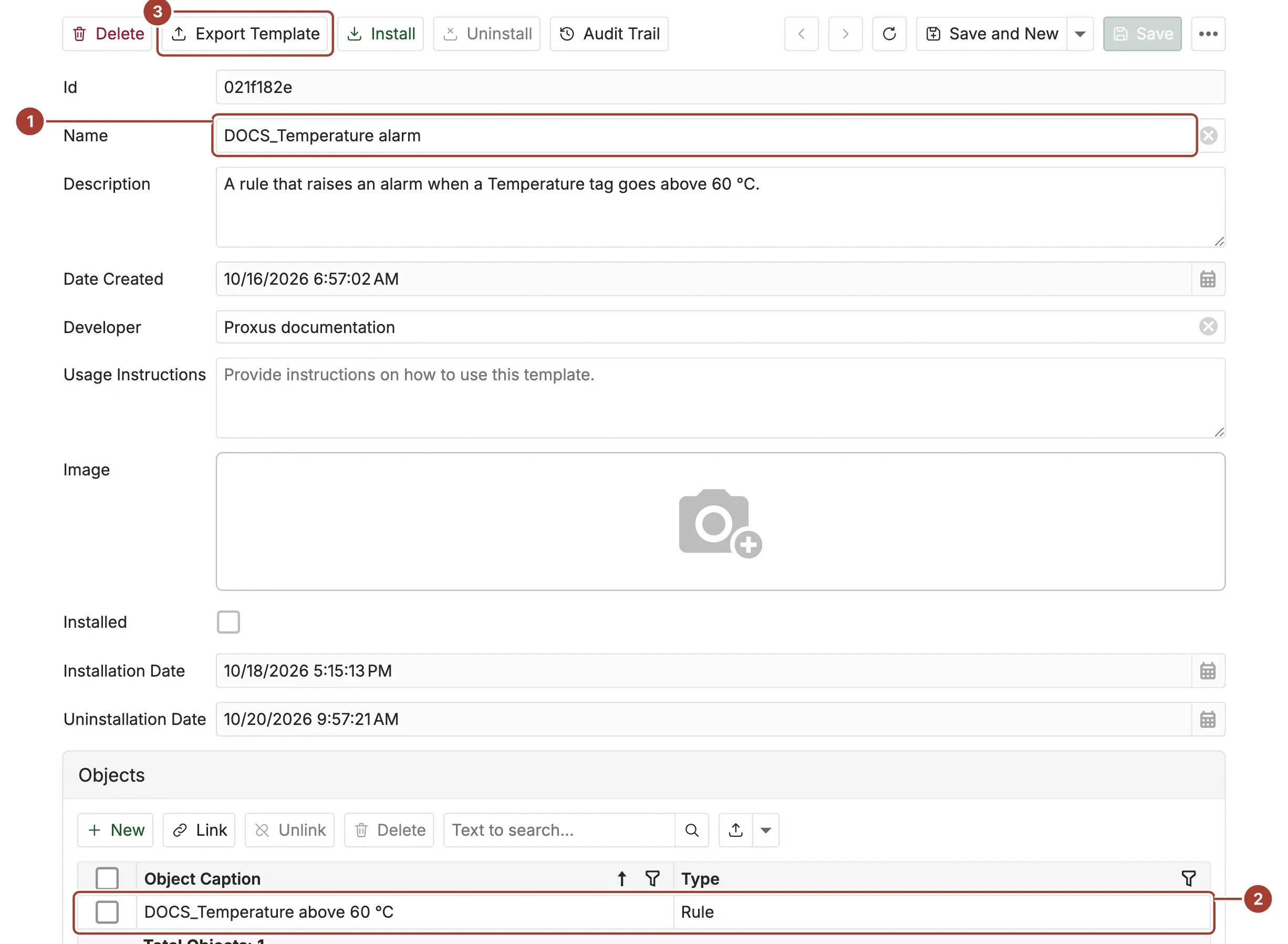
- The template's Name.
- The objects in the template.
- Export Template.
Export the template
- Select Export Template. Your browser downloads the file, named after the template and its Id, for example
DOCS_Temperature_alarm_1a2b3c4d.json.
Keep the file with your project documents. It holds the objects' settings, including connection settings of devices and target profiles: treat it like a configuration backup.
What's next
Was this page helpful?
Evaluating Proxus? See it on your own machines in a 30-minute technical session.